XML Schemas
Concept
XML Schema Definition (XSD) is a standard approach for specifying the structure and elements of XML documents. An XML schema allows you not only to create an XML document according to a definition, but also to validate the structure and content of the document.
In Orchestra, an XML schema is used to define and describe a Message that is a basic unit of information. This is done indirectly, by using Message types that can be derived from an XML schema.
Creation
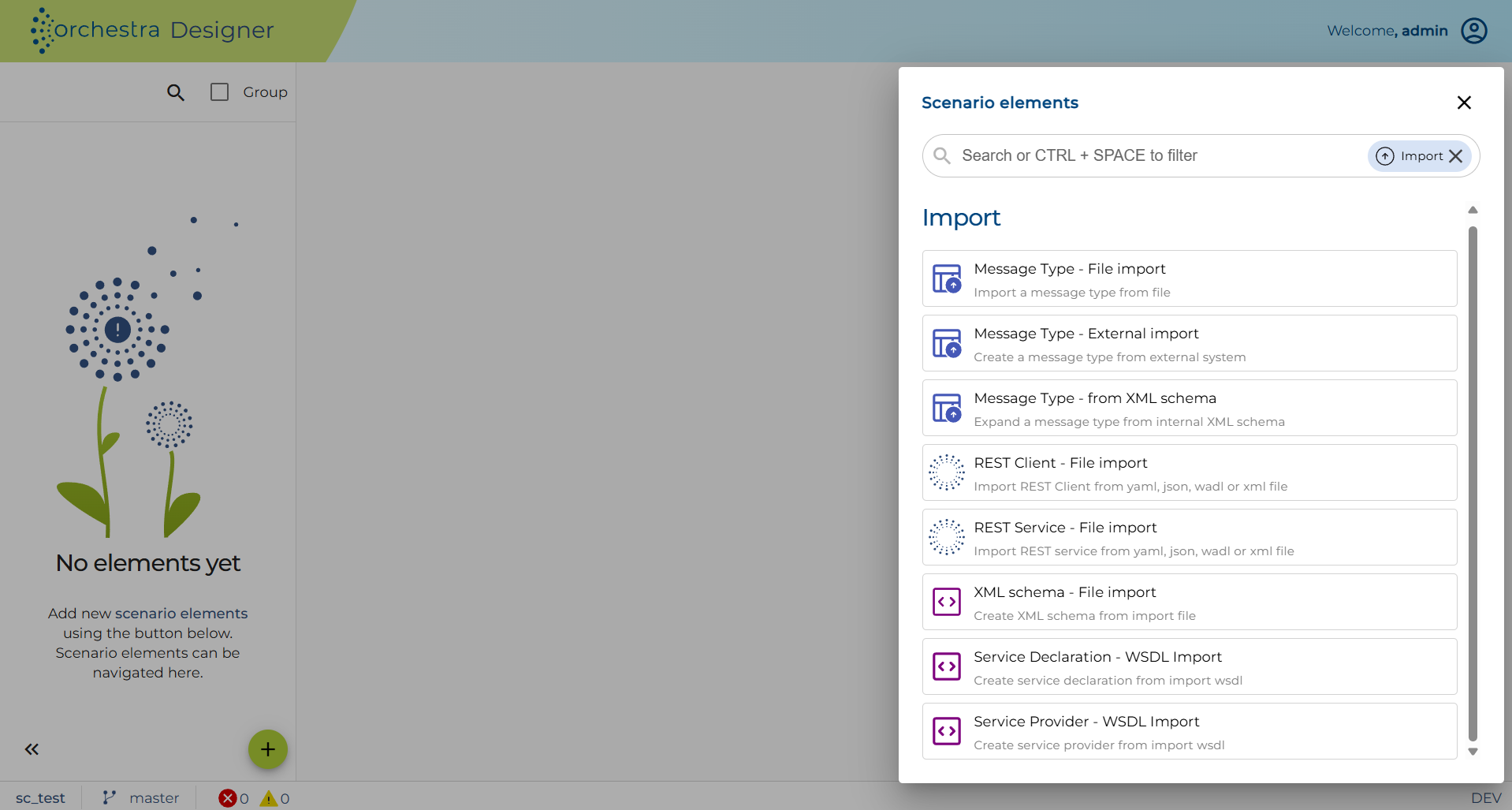
Instead of directly creating an XML schema we use the import option. Please navigate to the XML schemas element in the scenario elements tree and from the context menu select the Import file option:
A file select dialog will be shown where you have to select your XML schema:
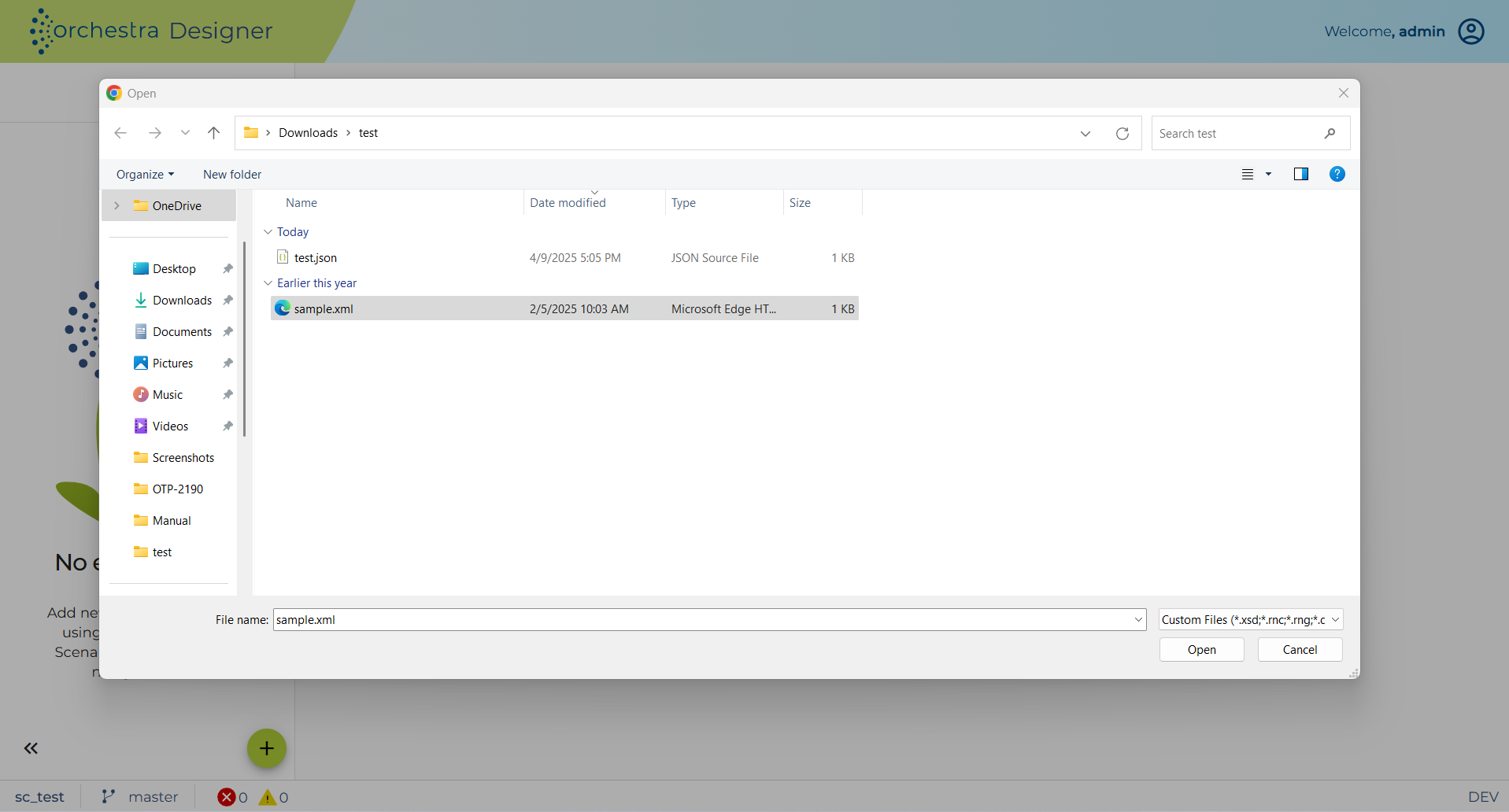
You can also validate an imported XML schema by selecting the validate schema option, that will check if the imported XML schema (which is actually an XML document) is well-formed.
Please click Next and the next dialog appears:
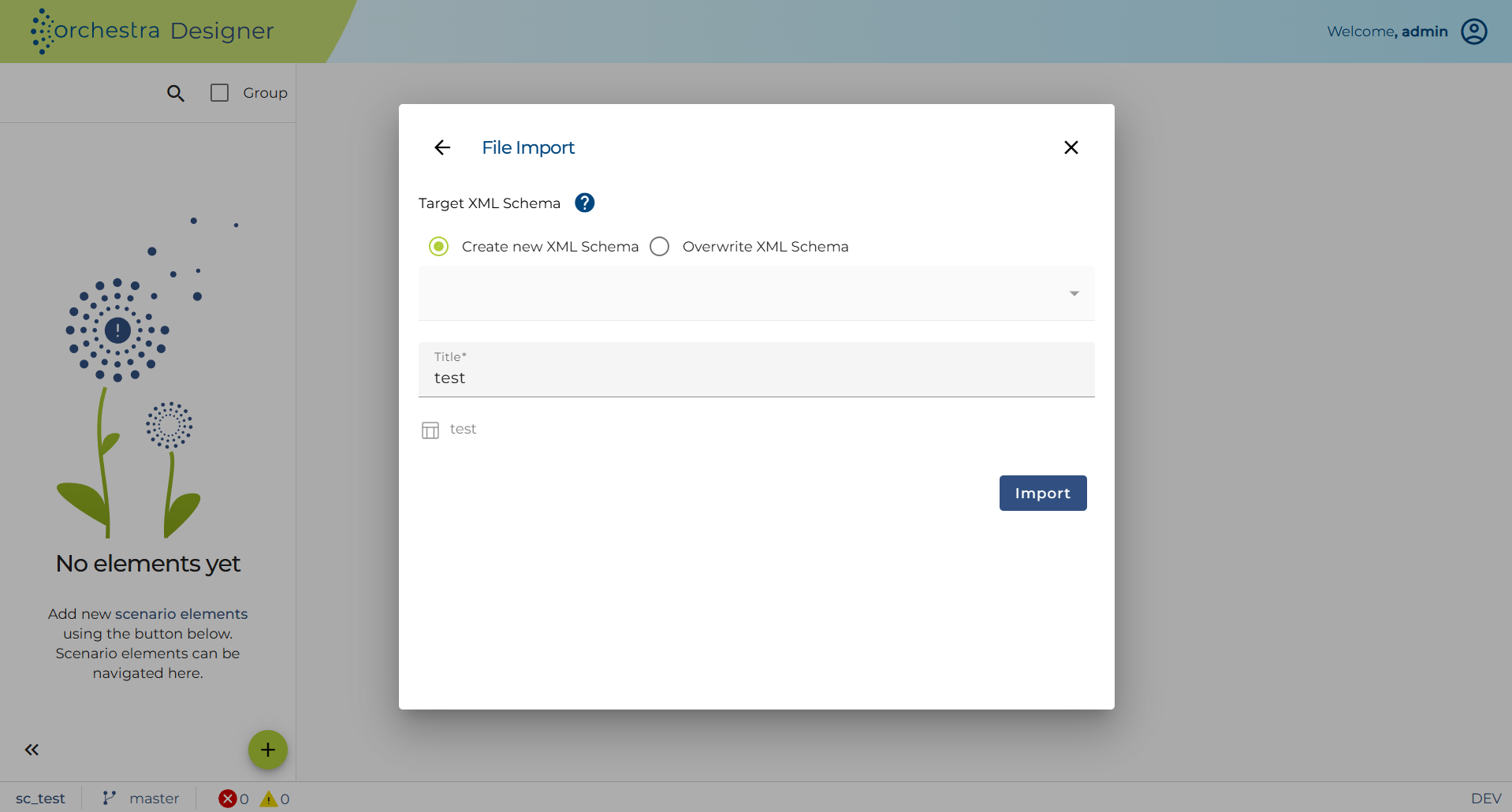
Here you can set the internal name and description of the schema. You can also choose if you want to create a new schema (default value in Overwrite combo box is <New XML schema>) or overwrite an existing one. Eventually, you have to click on the Finish button.
In the content panel, you will see the schema that is imported:
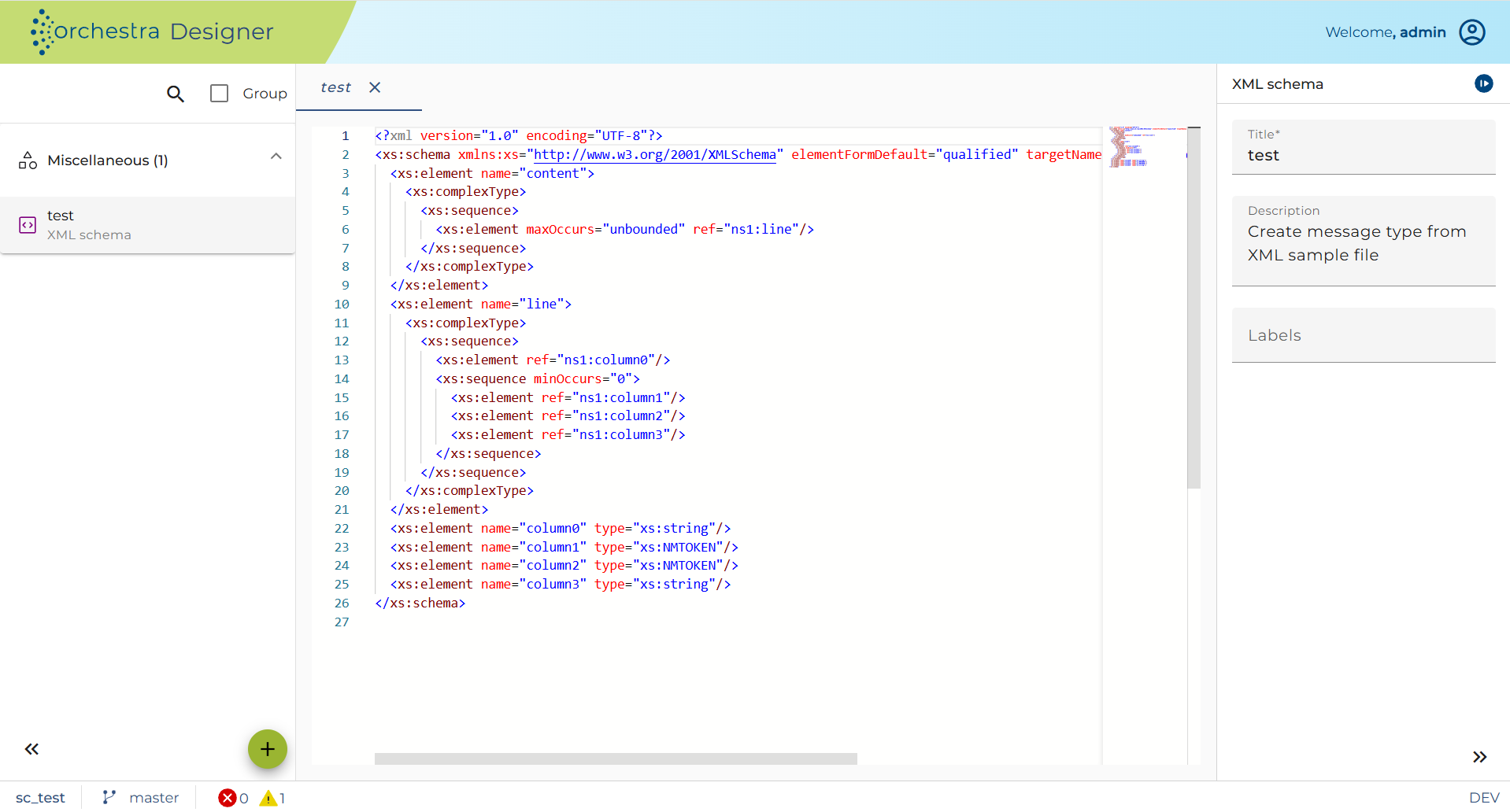
Here you can edit the schema if necessary.
When importing a WSDL, the XML schema will be automatically imported and put under the service declaration node. Details: Importing WSDL
Creating Message types from an XML schema
When working with XML schemas it is very convenient to use the message type creation option. Simply, navigate to your newly created schema in the scenario elements tree and select the Expand to message type option from the context menu
You will then have the option to create a message type from one of the elements contained in the XML schema or even from one of the message types defined within it
After the selection is done, click Next and you will get a dialog where you can additionally configure the message type
Clicking the Finish button will create a new message type that is accessible from the scenario elements tree :
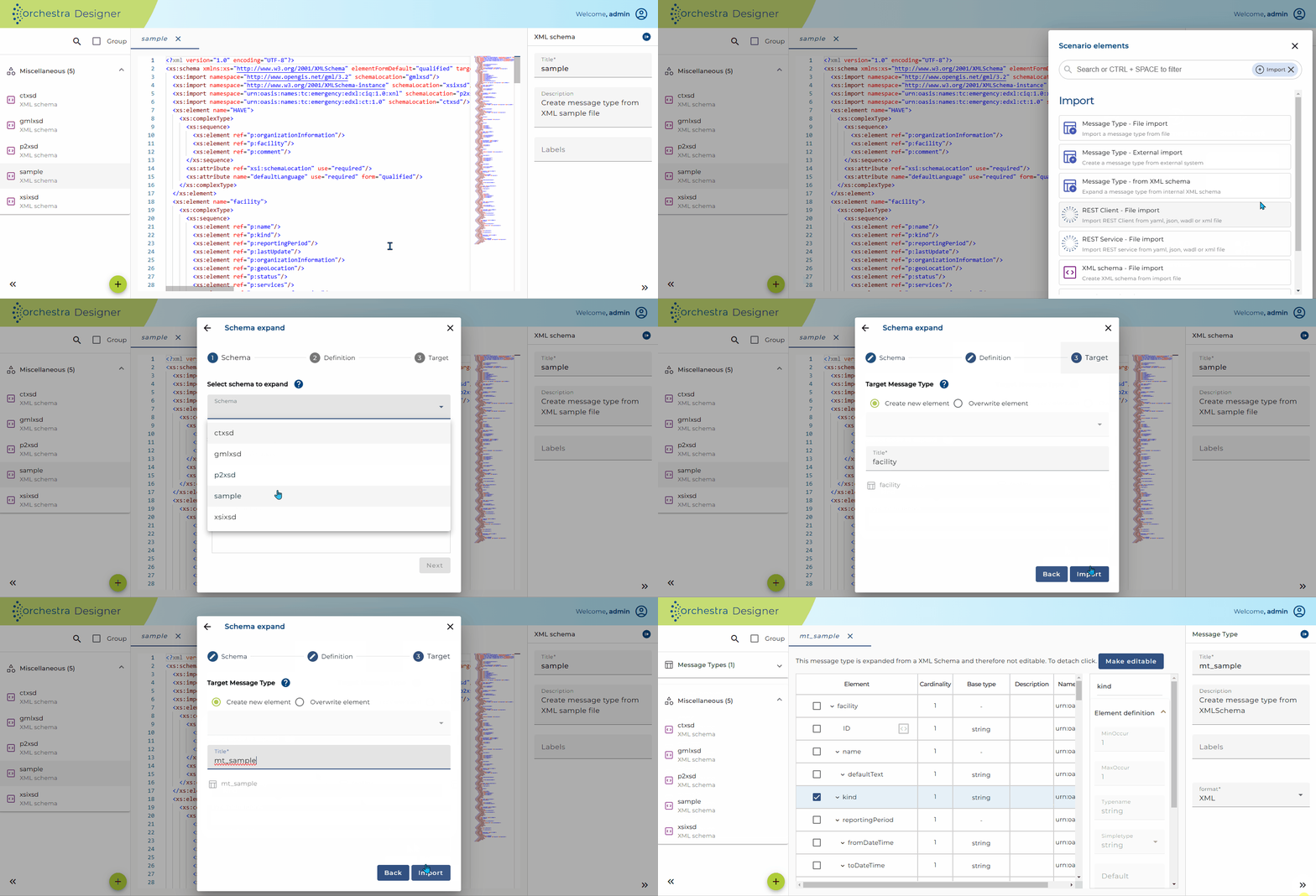
Message type created from XML schema